
Automatically link Gmail conversations to a project
Create exact-address rules in Talvu so new sent or received email connects the right conversation to your client project.
In this guide
Create an automatic linking rule
- Open the project's Automatic linking block and choose Add rule.
- Select the exact email address and check the destination project.
- Save the rule and leave its toggle on.
Rules match an address in From, To or Cc on eligible new incoming or sent mail. A rule does not send email, create a contact or import your whole mailbox.
Understand what becomes linked
- Wait for a new matching email after enabling the rule.
- Open the project's Email history to review the conversation association.
- Follow a history row to inspect its individual email in Gmail.
A match links the whole conversation and eligible replies. Other old conversations are not automatically backfilled just because their participants have the same address. Link those conversations manually when needed.
Pause or remove a rule
- Use the rule's toggle to stop future automatic matches.
- Turn it on again when you want new matching mail to trigger linking.
- Delete the rule if you no longer need that automation.
Switching off or deleting a rule preserves existing project links. To remove a linked conversation, unlink it from the project's Email history instead.
Manage rules across projects
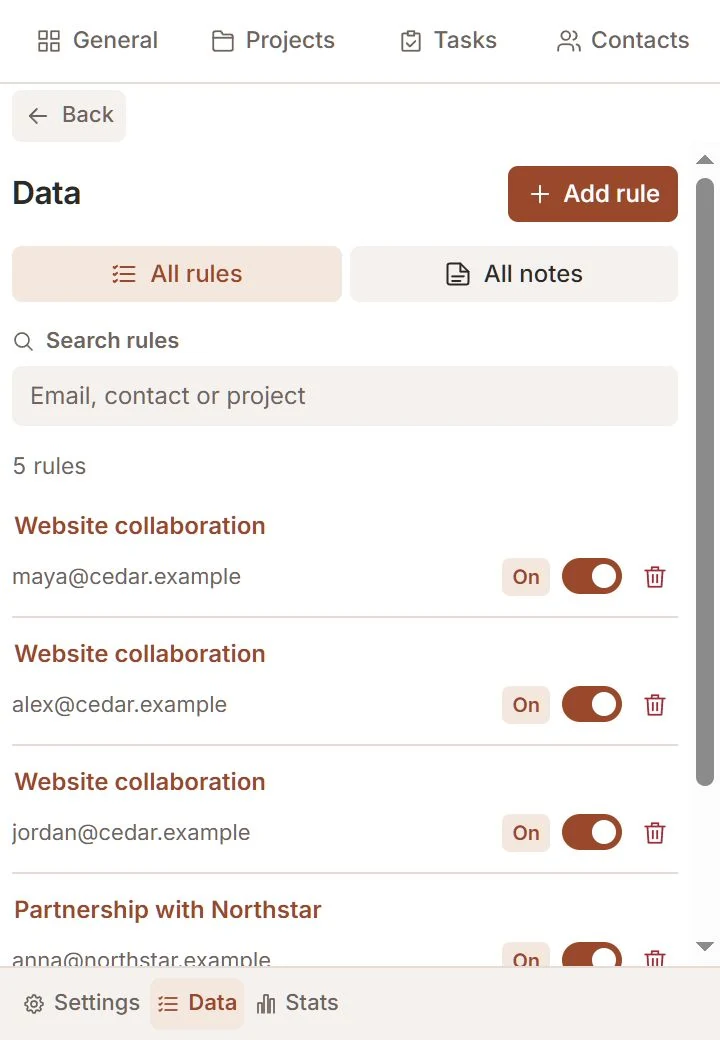
- Open Data in the footer and choose All rules.
- Search by email, contact or project to find the rule.
- Check its project and enabled state before changing it.
An explicitly unlinked conversation is not silently restored by an existing rule. Review your manual exclusions if an expected conversation stays unlinked. Rules and email note reminders serve different purposes.