
Get started with Talvu for Gmail and Google Workspace
Install the Chrome extension, connect the right Google account and organize your first client conversation in Talvu.
In this guide
Install Talvu in desktop Chrome
- Open the Talvu listing in Chrome Web Store and choose Add to Chrome.
- Open Gmail on your computer. Click the Talvu extension icon to open its side panel.
- Keep the client email open beside the panel while you work.
The website works on mobile, but the Talvu extension requires desktop Chrome. It is an independent product for Gmail, including Google Workspace mailboxes.
Connect the matching Google account
- Choose Continue with Google in the Talvu panel.
- Select the same email address as the open Gmail tab and review the access request before agreeing.
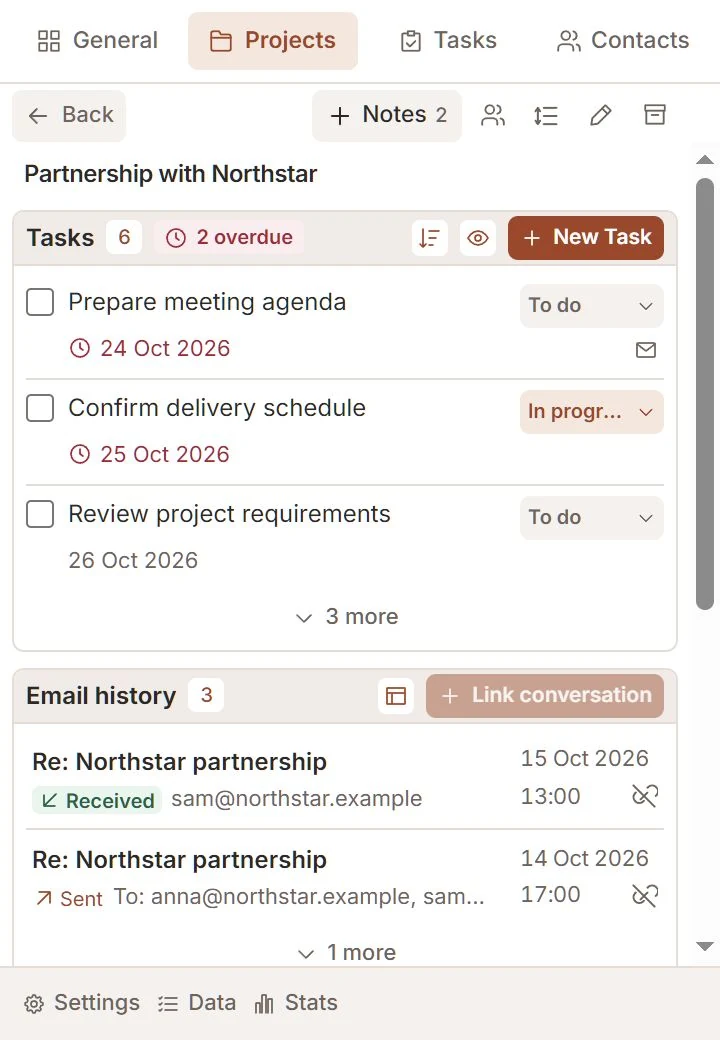
- Wait for the CRM panel to open. General shows the context of the selected conversation.
Talvu uses read-only Gmail access. Email text and attachments stay in Gmail; Talvu processes and stores selected email metadata for CRM links. A Workspace administrator may need to allow the app under your organization's policy.
Organize your first conversation
- Open Projects and create a project for the client work you want to follow.
- Link the open conversation to that project, then save the useful participants as contacts.
- Create a task for your next action and add a project note for details you want to remember.
Projects, contacts and tasks are separate records. You can start with just one of them. Talvu does not send emails: use Gmail to write and reply.
If connection does not finish
- Check that the chosen Google address matches the open Gmail tab.
- If Google reports an organization restriction, ask your Workspace administrator about access to Talvu.
- Use the connection or retry action shown in the panel. Contact Talvu support if the problem persists.
Google's verification warning and an organization's access policy are different from installing the extension. Never enter Google passwords or verification codes into a support message.