
Save and organize contacts beside Gmail
Create CRM contacts from email participants, keep several addresses for one person and see their related projects and tasks.
In this guide
Save a person from an email
- Open a Gmail conversation and the Contacts section in Talvu.
- Choose the participant you want to save, or create a contact from the contacts list.
- Check the name and email address before saving.
Talvu contacts are CRM records. Saving or deleting one does not change Google Contacts. Participants available from a conversation follow its latest email, so a new participant can appear as replies arrive.
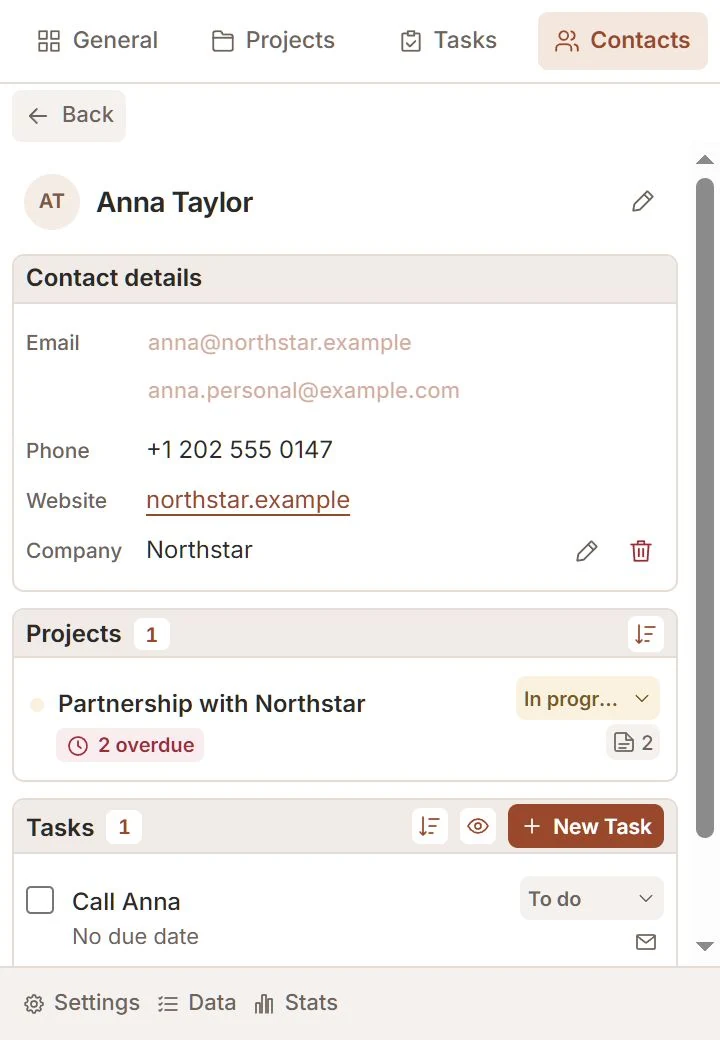
Keep a person's details together
- Open a contact and choose Edit.
- Add the person's other email addresses, phone, company or website when useful.
- Save the changes and review the contact card.
Keep multiple addresses on one contact when they belong to the same person. Do not create a second record merely because a client uses a different address. User-entered details retain their original language.
Connect contacts to client work
- Open a project and use Manage contacts to select its people.
- Click a contact's linked name or email in the project's contact block to open that contact.
- Review the contact's Projects and Tasks blocks to continue the relevant work.
A contact can be connected to several projects. A task linked to a contact remains one task; it is not copied into every project involving that person.
Search, edit and remove carefully
- Use Contacts search and the adjacent sort control to find the record.
- Review existing contacts before adding a similar name or another address.
- Use Delete only when you intend to remove the CRM contact and confirm the action.
Removing a related contact does not delete Gmail correspondence. Tasks survive removal of their related record as standalone tasks. If a save is uncertain, keep your text and use the recovery action shown.