
Customize your Gmail CRM layout and settings
Set Talvu's language, time zone, statuses, custom fields, block layout and Gmail badges to match the way you work.
In this guide
Choose language and time zone
- Open Settings from the footer and choose Language.
- Select English, German, Spanish, Russian, Polish, Romanian, Italian or Ukrainian.
- Check the time zone used for task deadlines and dates.
The first launch follows a supported browser language, falling back to English. A saved manual choice takes priority. Your project names, notes and other entered data are not translated.
Use your own statuses and fields
- Open the relevant project or task status settings to rename options and choose colors.
- Create the custom fields you need, selecting the available field type.
- Add fields to a project and enter its values.
Status meaning matters as well as its label. Finished project statuses affect badge eligibility and reminder availability. Use the field type that matches the value instead of putting every detail in the project name.
Arrange General and Project blocks
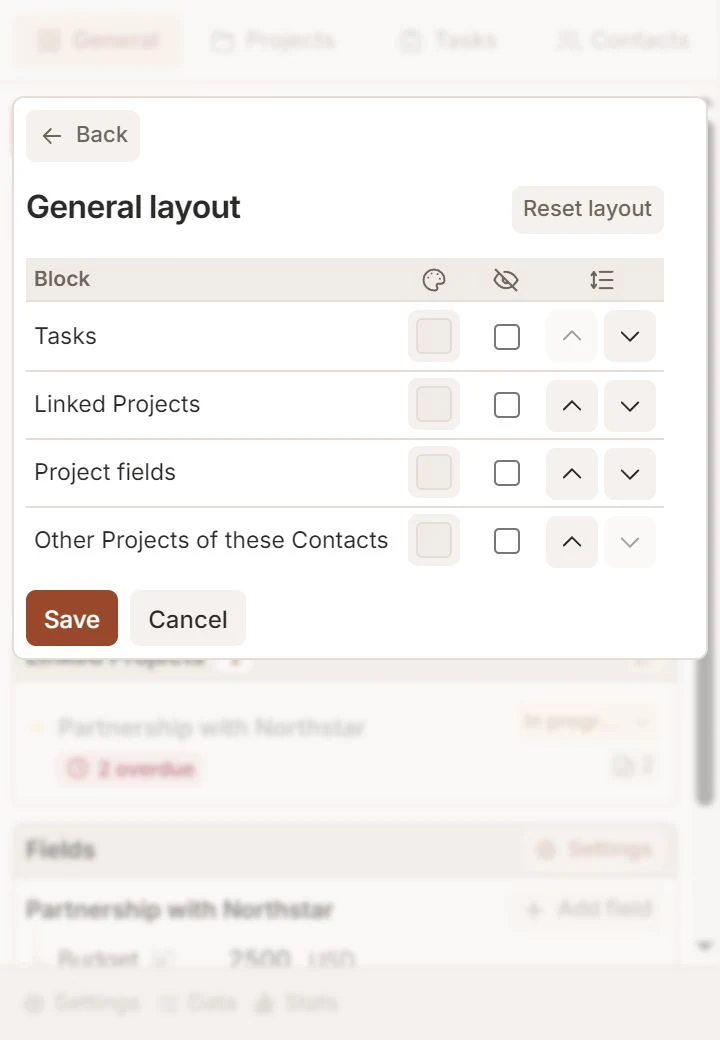
- Open Layout for the view you want to change.
- Move blocks up or down, hide unused blocks and choose their header colors.
- Save, or use Reset layout to return to the defaults.
General and Project layouts are configured separately. Hiding a block changes its presentation, not the stored CRM information.
Choose Gmail Task and Project badges
- Open Settings and find Gmail badges.
- Enable Show Tasks, Show Projects or both.
- Use the information icon to review the exact visibility rules.
Task badges count eligible unfinished tasks. Project badges show active projects and exclude successful or unsuccessful finished statuses. Archiving alone does not hide an active project's badge. Badges are Talvu decorations, not native Gmail labels.