
Create follow-up tasks from Gmail emails
Turn a client email into a clear next action with a deadline, status and a link back to its source in Talvu.
In this guide
Create a next action
- Open Tasks and choose New Task, or create a task from General or an open project.
- Write an action in Title; add an optional description, date and time.
- Choose a status and the relevant project, contact or email address, then save.
A task can have one relationship, or none. Its source-email bookmark is separate. Tasks belong to Talvu; they are not Google Tasks and are not automatically added to Google Calendar.
Check which email is bookmarked
- Review Linked email before saving a task created from an email.
- In Gmail conversation view, Talvu uses the latest email in the conversation.
- Use the task's email link later to return to the saved source message.
Opening an older reply does not change the latest-email rule for new tasks. With conversation view off, the currently open individual email is used. Switching to an unrelated conversation closes an email-bound new-task form to avoid confusion.
Find work that needs attention
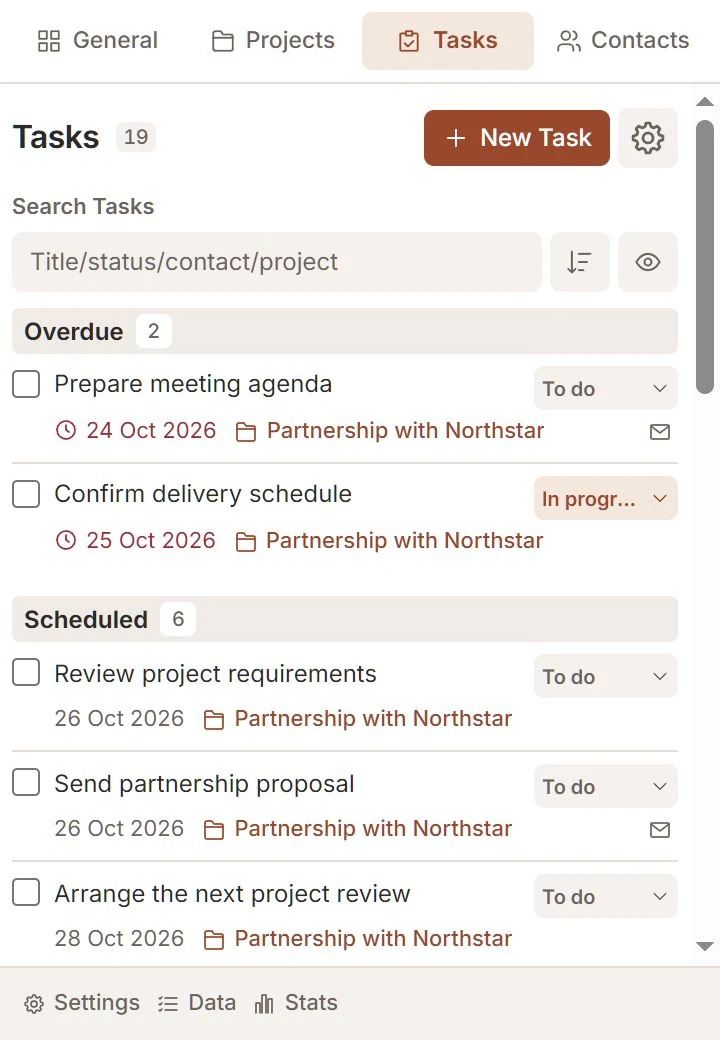
- Search the task list and use the sort control beside search.
- Use Hide completed to focus on unfinished work.
- Look for the red clock on overdue tasks and review their date and optional time.
Dates follow your configured time zone. A date without a time remains a date-only deadline. A deadline does not send a message to the client; email-triggered note reminders are a different feature.
Update or finish a task
- Change the task status or use its completion checkbox.
- Choose Edit when the title, deadline, description or relationship needs changing.
- Use Delete for a task you no longer want, then confirm.
The same task appears in relevant views without being duplicated. Completing it updates those views and its eligible Gmail badge. Completed tasks can be shown again with the visibility control.