
Find and download files from project emails
Find attachments from linked project emails, sort by date, size or type, and download a chosen file or open its source in Gmail. Talvu does not store email files.
In this guide
Find and download project files
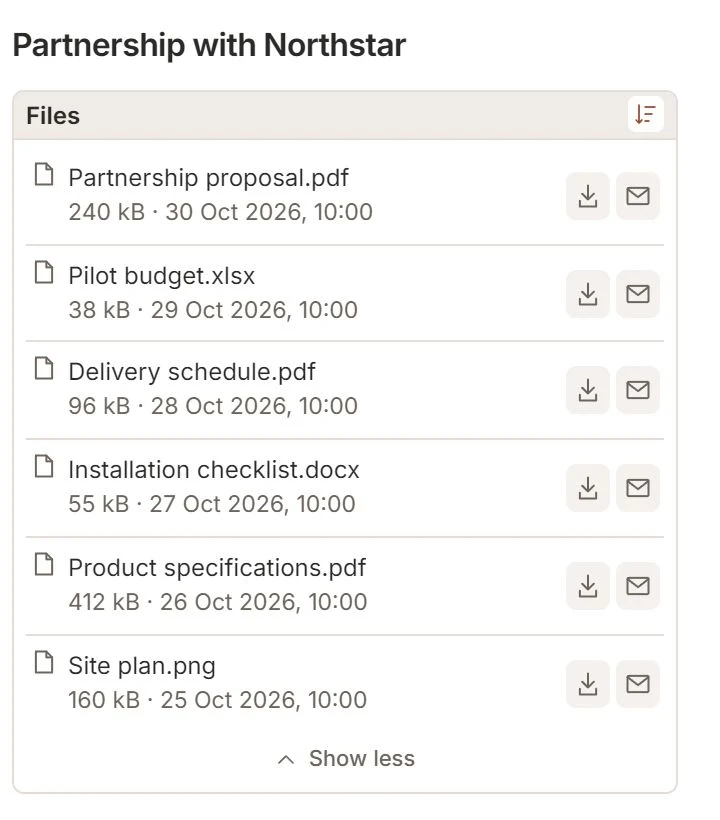
- Open a project and find Files. It shows files from the email conversations linked to that project.
- Choose the download icon on the right to download a file. The filename itself does not start a download. Use the email icon beside it to open the source email in Gmail.
- The block shows three rows first. Expand it for six visible rows and scroll or choose Show more to load further results.
Talvu does not store these files on its servers. An explicitly requested download passes through Talvu to your browser. Files and the file list are excluded from CRM export. The block requires an extension version that includes Files.
Only email attachments
- Files shows ordinary attachments from linked conversations. Images marked as embedded are hidden automatically.
- A logo can remain if the sender marks it as an ordinary attachment. Talvu uses MIME markers, not image recognition.
- Use sorting to arrange loaded files. There is no category filter to reset when opening another project.
The list does not download file contents. Only the download icon starts a download; the email icon opens the source message.
Sort the list and find the source email
- Open the sort icon in the Files header.
- Choose newest or oldest email date, largest or smallest file, or file type. Type follows the filename extension or the stated file format.
- Use the email icon on a file row to return to its original message; use the separate download icon only when you want the file.
Sorting applies to the files already loaded. Expand the block to see more; additional results join the selected order as they load. Changing the sort does not download files.
Automatic list updates
- Return to a project to continue with its loaded list. Use Show more when more conversations remain to be checked.
- The list updates automatically when linked conversations or their emails change.
- If a file is unavailable, open its source email in Gmail. Dismiss an error with its close button, or use Retry when offered.
A temporary pause can occur while mail updates recover; repeated clicks do not speed this up. Talvu does not keep a copy of files on its servers. File contents pass through only for an explicit download; files and the file list are excluded from CRM export.